At 20%
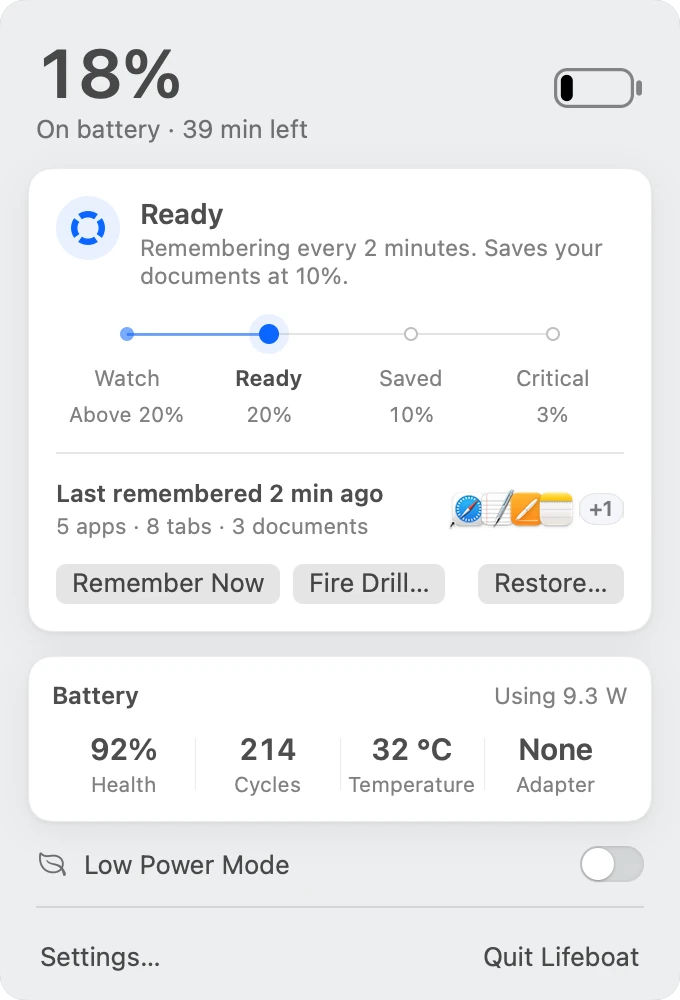
Lifeboat starts checking what you have open every 2 minutes instead of every 10, and shows one notification to say it's ready.
You won't get permission prompts at this point. Lifeboat asks for everything it needs when you first set it up.
Lifeboat sits in your menu bar and keeps an eye on the battery. At 10% it saves your documents and remembers which apps, windows and tabs you had open. If the Mac shuts down, it opens everything again when you turn it back on.
Free for 7 daysmacOS 14 or laterApple silicon and Intel5.8 MB
A model of a MacBook running Lifeboat. Use the controls below the picture to drain the battery, start the Mac again and reopen everything. Each step is read out as it happens.
32%, on battery. Lifeboat checks what you have open every 10 minutes. Drain the battery to see what it does.
When a Mac runs out of battery, files you already saved are fine. What you lose is anything you hadn't saved yet, plus all the windows and tabs you had open. Lifeboat steps in at three points.
Lifeboat starts checking what you have open every 2 minutes instead of every 10, and shows one notification to say it's ready.
You won't get permission prompts at this point. Lifeboat asks for everything it needs when you first set it up.
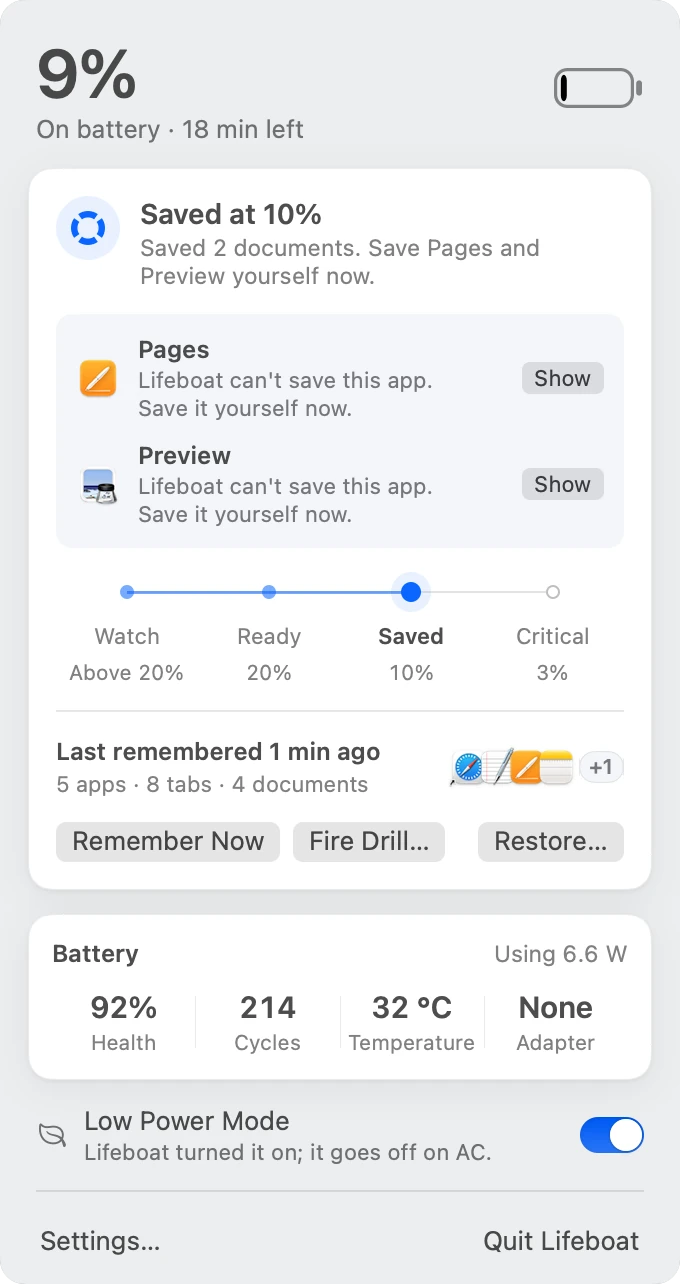
Lifeboat saves your documents, makes a note of everything you have open, and then tells you what it did.
If you want, it also turns on Low Power Mode and dims the screen. When you plug in, it switches them back.

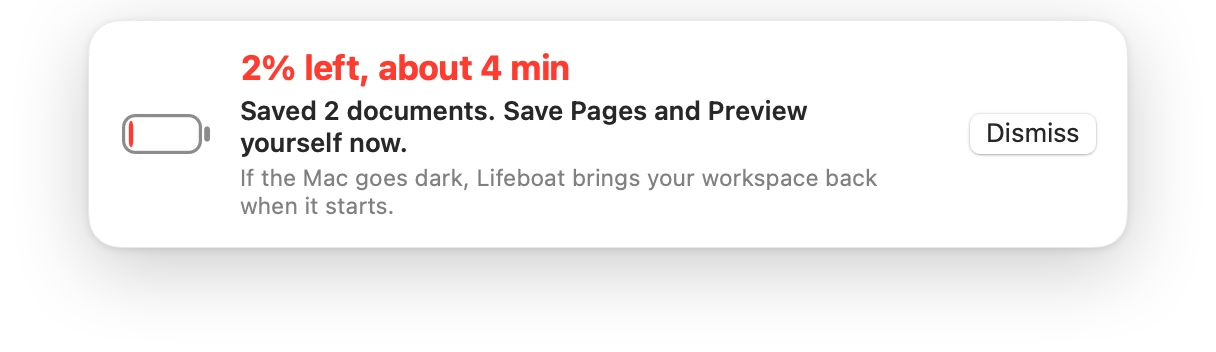
At 3%, or with about 4 minutes left, Lifeboat saves once more. The edges of the screen turn red and a small card at the top shows how many minutes are left and what's been saved.
You can keep working. The card doesn't take over your keyboard.

The Mac turns off. Lifeboat can't prevent that, but by now your documents are saved and it knows what you had open.
If you'd rather the Mac hibernate than switch off, see Safe Landing below.
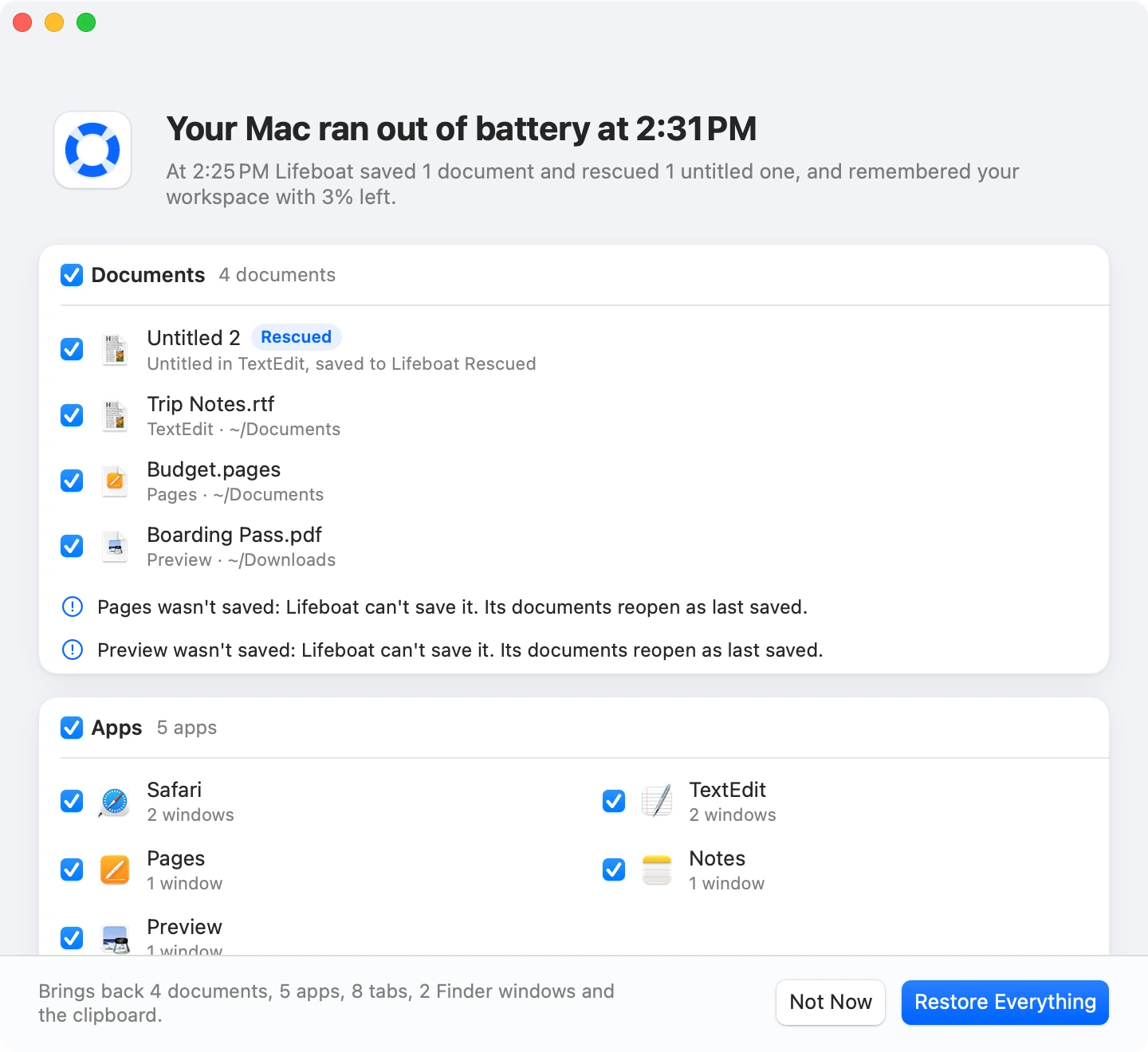
2:31 PM
Plug in and start the Mac. Lifeboat opens a Welcome back window that lists what it can reopen: documents, apps, browser tabs, Finder windows, Terminal folders and the clipboard.
Untick anything you don't want back and click Restore Everything. Apps open, documents open as they were last saved, and windows go back to where they were. Anything that's already open is left as it is.
For now, windows come back on the desktop you're using, even if they were on another Space.

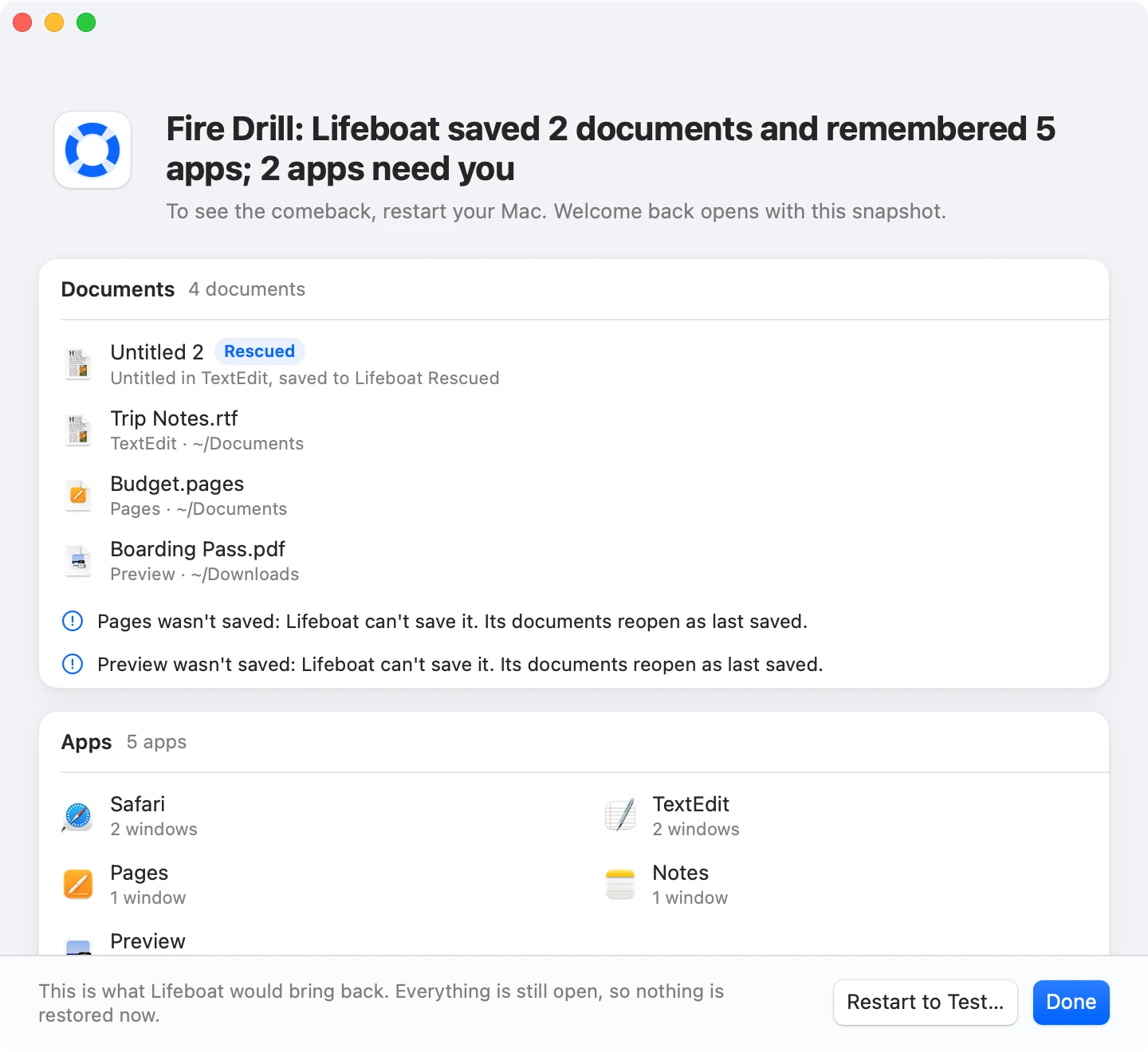
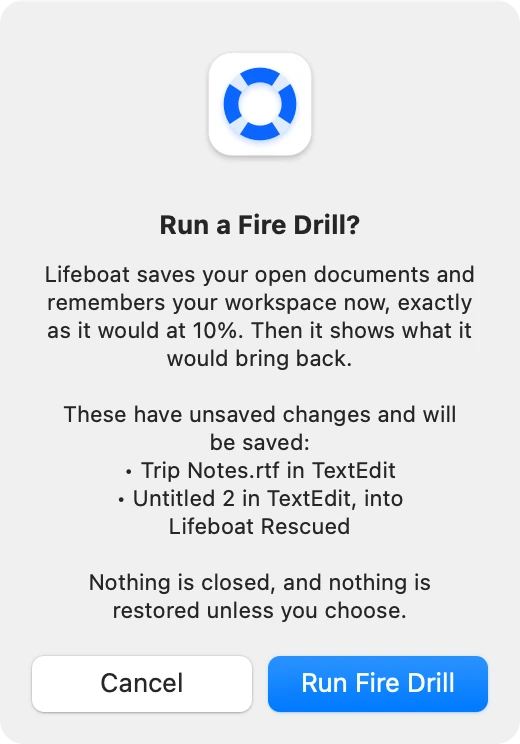
A Fire Drill runs the 10% steps whenever you like. You'll see what Lifeboat saved and what it would reopen. Anything it couldn't handle is listed first.
Restart the Mac afterwards and you'll see the Welcome back window for real.
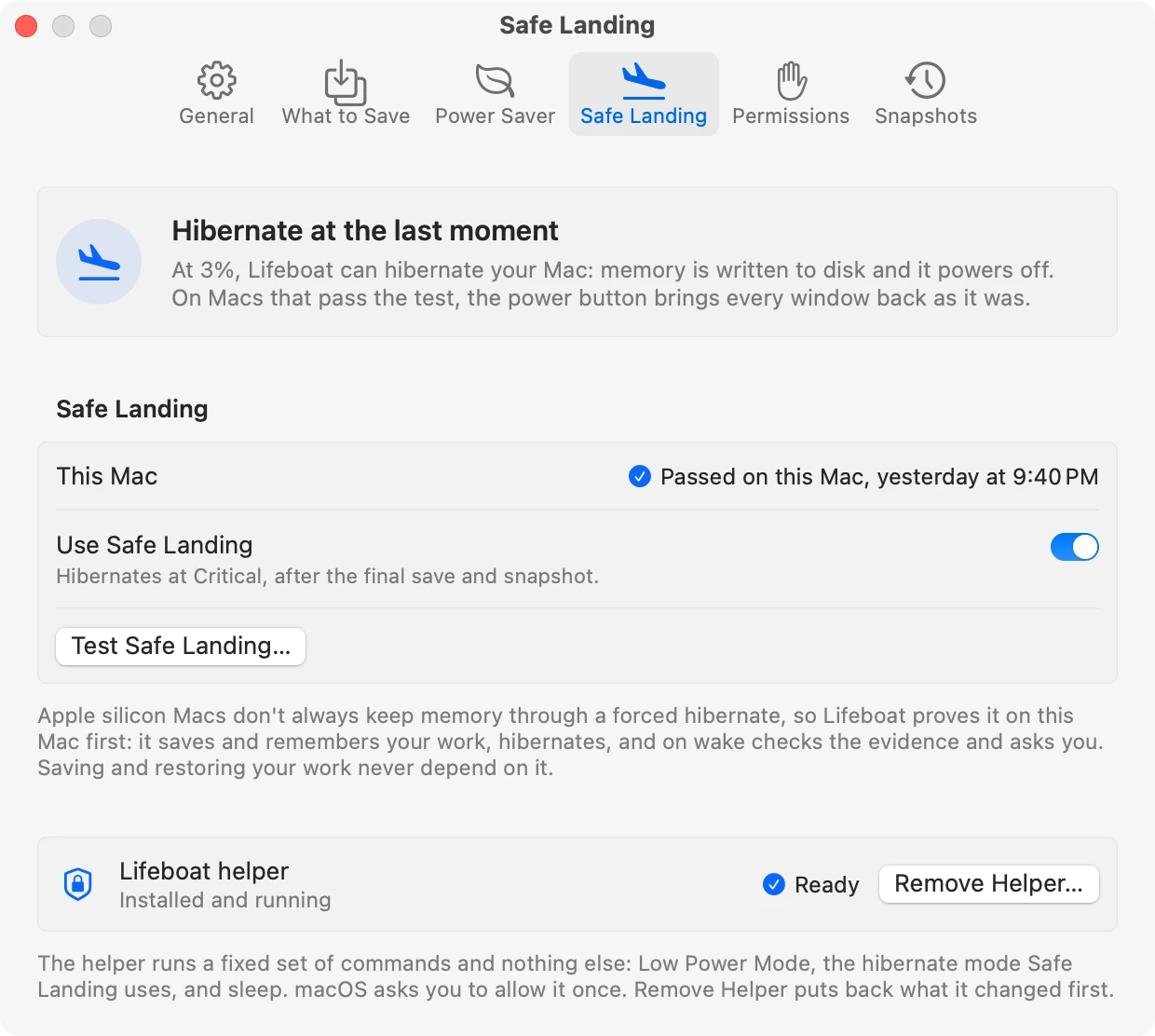
With Safe Landing on, Lifeboat hibernates the Mac at 3% instead of letting it switch off. When you start it again, everything is exactly where you left it, including unsaved work.
It's off to start with. To turn it on, run Test Safe Landing once, and it stays on only if the test works on your Mac. Saving and Welcome back work either way.

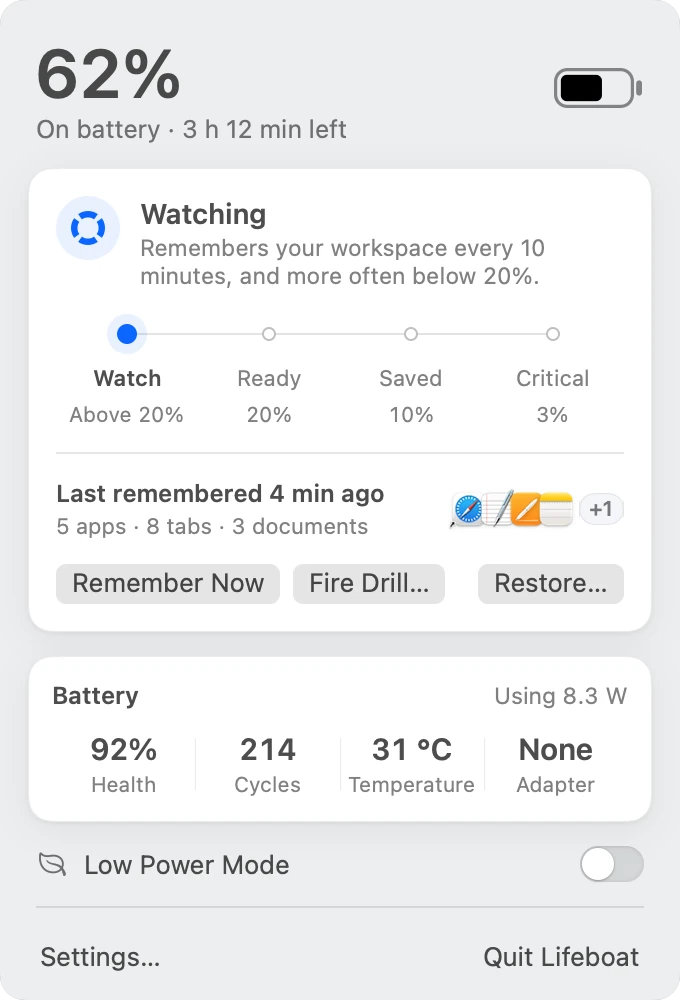
The rest of the time, Lifeboat is a battery menu. It shows the percentage and time left, and when you click it:
You can change the 20%, 10% and 3% points in Settings.

To reopen your work, Lifeboat has to look at your windows, documents, tabs and clipboard. All of that stays on your Mac.
What Lifeboat remembers is kept in files in your Library folder. It keeps the last 30, plus everything from the last 48 hours.
Download it and use it. If you buy it, we need your email address to send the license key.
It only goes online to check your license and look for updates. More details.
Lifeboat costs $9, paid once. You can use all of it free for 7 days first.
If you don't buy it, Lifeboat stops saving when the trial ends. Anything it already remembered can still be reopened.
Payment is handled by Dodo Payments. No subscription.
No. When the battery is empty, the Mac turns off. Lifeboat saves your documents and notes what's open before that happens, then offers to reopen everything when you start up again. If you turn on Safe Landing and it passes its test, Lifeboat hibernates the Mac instead.
TextEdit, for now. Untitled TextEdit documents go into the Lifeboat Rescued folder in Documents. Pages, Numbers and Keynote are next. Apps that save as you type, like Notes, don't need it. For anything else, Lifeboat reminds you to save.
Whatever the app, Lifeboat still remembers its windows and reopens them.
Lifeboat saves again at 3% (or with 4 minutes left), and checks what you have open every minute until you plug in.
Not yet. Windows come back on the desktop you're using.
Accessibility, to see your windows and where they are. Automation, for each app it saves documents in or reads tabs and folders from. Notifications, for the 20% and 10% alerts. It asks for all of these during setup, so you won't get a prompt at 10%.
Low Power Mode and Safe Landing also need a small helper, which macOS asks you to approve once.
A little. Lifeboat checks what you have open every 10 minutes on any Mac, so after a power cut it can offer to reopen it. The 10% save is only for laptops.
Lifeboat stops saving until you enter a license key. The battery menu keeps working, and anything it remembered during the trial can still be reopened. A license is $9 and covers 3 Macs.
macOS 14 Sonoma or later, on Apple silicon or Intel.